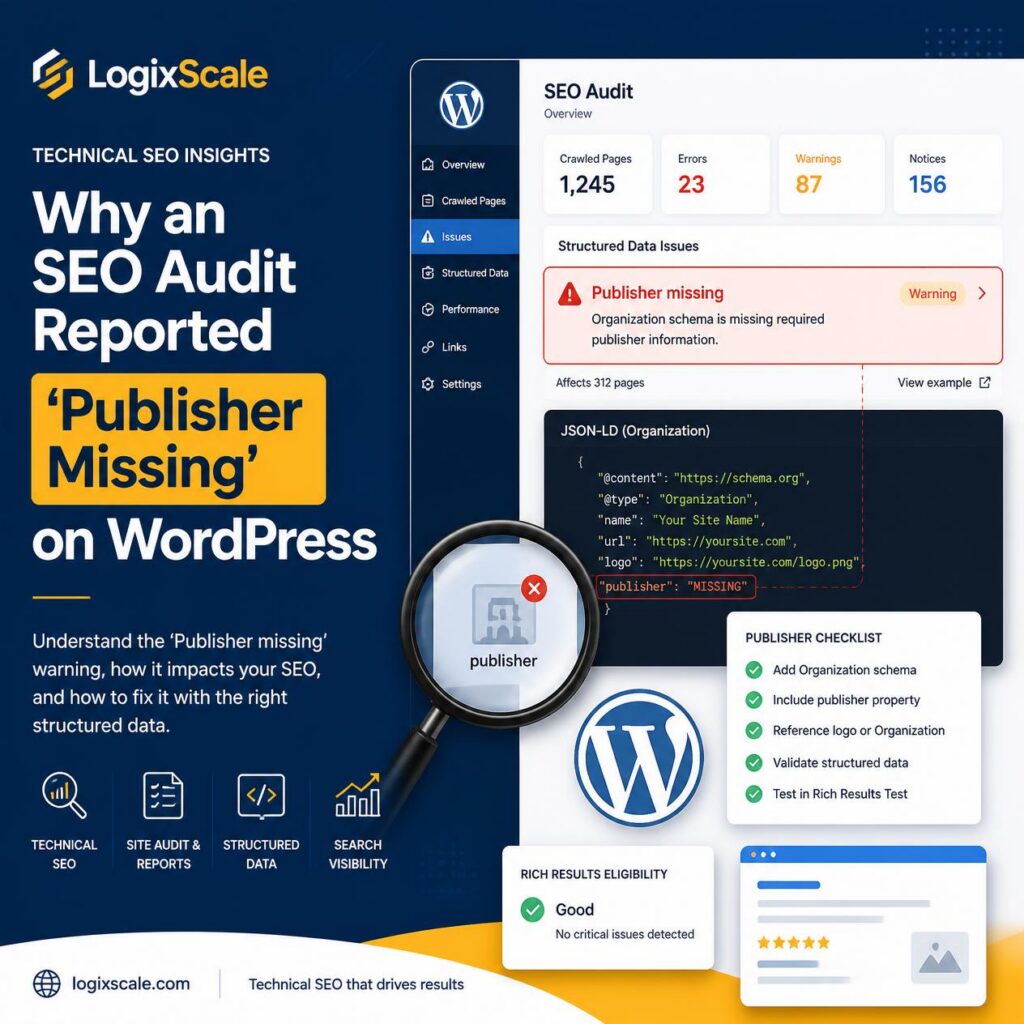
An SEO audit can report “Publisher Missing” even when a WordPress site has a visible author, a company name in the footer, and perfectly valid-looking pages.
That warning usually points to a different layer: structured data. During a live WordPress audit, we found that the page content itself was not the whole story. The important question was whether the structured-data graph clearly identified who published the content and how that entity related to the website.
What “Publisher Missing” actually means
In an SEO audit, “Publisher Missing” generally means the structured data being inspected does not expose an expected publisher entity or does not connect the publisher information in the way the auditing system expects.
That is different from saying that WordPress has no author. A WordPress post can have an author account while its generated JSON-LD still lacks the publisher information required by a particular schema validation or audit rule.
Why WordPress can create this situation
WordPress does not have one universal structured-data implementation. The final JSON-LD output can be influenced by the active theme, SEO plugin, schema settings, custom templates, post type configuration, and other plugins.
As a result, two WordPress sites can contain similar articles but produce very different structured-data graphs.
The visible author is not the same thing as a schema publisher
An article may visibly show an author name such as “LogixScale”, while the structured data describes the page using an Article or BlogPosting object without a usable publisher property.
That distinction was important in our audit. We did not treat the audit warning as proof that the WordPress author system was broken. Instead, we inspected the generated structured data.
How we investigated the warning
- Identify the exact URL. We first confirmed which published page generated the warning instead of assuming that every WordPress page had the same problem.
- Inspect the rendered HTML. We checked the live page rather than relying only on WordPress editor fields.
- Locate JSON-LD. We searched the rendered source for
application/ld+jsonblocks and identified the article-related schema. - Follow the entity graph. We checked whether the article referenced an author, organization, publisher, logo, and website entity consistently.
- Compare the audit rule with the actual output. This helped separate a real structured-data gap from a warning caused by the audit tool’s own interpretation.
What we expected to find
For an article-oriented schema implementation, the useful relationship is not simply “this page has an author”. The structured-data graph should make the relationships between the article, its author or organization, the website, and the publisher understandable.
A simplified example looks like this:
{
  "@type": "Article",
  "headline": "Example article",
  "author": {
    "@type": "Person",
    "name": "Author Name"
  },
  "publisher": {
    "@type": "Organization",
    "name": "LogixScale",
    "logo": {
      "@type": "ImageObject",
      "url": "https://example.com/logo.png"
    }
  }
}
The exact schema should match the site’s real entities. Adding fields simply to make an audit turn green can create inaccurate structured data, so we treated the warning as an investigation rather than a checkbox.
Common causes we found worth checking
1. SEO plugin schema settings
An SEO plugin may generate the article schema while site-level organization information is incomplete or configured differently from the intended entity.
2. Theme-generated schema
The active theme can add its own structured data. If multiple systems output overlapping schema, the resulting graph can become difficult for an audit tool to interpret.
3. Missing organization information
If the site does not clearly define its organization, logo, or website identity, an article publisher relationship may be incomplete.
4. Custom post templates
Custom templates can bypass assumptions made by an SEO plugin. This is especially relevant when a WordPress site has custom post types or a heavily customized theme.
5. Conflicting schema output
More structured data is not automatically better. Multiple competing Article, Organization, or WebSite entities can make debugging harder and may produce audit warnings that require manual interpretation.
How we fixed the underlying issue
Our approach was to make the site’s entity relationships explicit rather than adding a random publisher field just to satisfy an audit.
We first established which system was responsible for the article schema. Then we checked the organization identity, logo reference, author relationship, and canonical URL. After the implementation was corrected, we re-rendered the live page and inspected the resulting JSON-LD again.
The important lesson was that the fix belongs at the source of the structured data. Editing an unrelated WordPress field does not necessarily change the JSON-LD that search engines receive.
How we verified the result
We did not consider the task finished immediately after changing the configuration. We repeated the audit process:
- Open the published URL.
- Confirm the page returns successfully.
- Inspect the rendered structured data.
- Confirm the article entity is present.
- Confirm the publisher relationship is represented consistently.
- Check the organization and logo references.
- Confirm the canonical URL remains correct.
- Run the audit again and compare the warning.
This final verification step matters because WordPress caching, SEO plugins, and server-side optimization can cause the live output to differ from what was visible immediately after an edit.
Publisher Missing vs. a real indexing problem
It is also important not to confuse a structured-data warning with an indexing directive.
A missing publisher property is primarily a structured-data quality issue. It is not the same thing as a page being blocked by noindex, excluded by robots.txt, or inaccessible to crawlers.
Those checks belong to separate parts of a technical SEO audit. We covered the broader audit workflow in How We Audited 80 WordPress Pages for SEO Metadata, where metadata, canonical URLs, robots directives, Open Graph data, indexing status, and URL status were reviewed together.
A practical WordPress debugging checklist
When an SEO tool reports “Publisher Missing”, use this sequence:
- Check the exact URL that triggered the warning.
- Inspect the page’s rendered JSON-LD.
- Identify which plugin or theme generated it.
- Find the article’s author entity.
- Find the organization or publisher entity.
- Check whether the logo is represented correctly.
- Look for duplicate or conflicting schema graphs.
- Verify the canonical URL.
- Clear relevant caches.
- Re-run the audit against the live URL.
The main lesson from the audit
“Publisher Missing” looked like a small SEO warning, but investigating it correctly required looking beyond the WordPress editor.
The useful workflow was simple: audit the rendered output, identify the schema source, fix the underlying entity relationship, then verify the live page again.
That same principle applies to other technical SEO warnings. An audit report is a starting point for investigation—not a substitute for inspecting what the crawler actually receives.
If you are working through a broader WordPress technical SEO cleanup, the next layer to inspect is often the response headers and crawl directives. Our related case study, X-Robots-Tag Missing in WordPress: How to Fix and Verify It, covers that type of investigation.